What is Developer Mode?
Developer Mode is a hidden menu of advanced settings built into the Android operating system. As the name suggests, these tools were originally created for software developers and IT professionals to test apps, monitor system performance, and debug software.
Because tweaking these settings can change how your phone operates—and in some cases, cause glitches if you don’t know what you are doing-Android keeps this menu hidden by default so casual users don’t accidentally mess up their devices.
How to Turn ON & OFF Developer Mode on Android Phones
- Open the Settings app on your phone.
- Scroll down to the bottom and tap on About device.
- Tap on Version.
- Find the Build number and tap on it 6-7 times quickly.
- Enter your phone’s lock screen password or PIN if prompted.
- You will see a message on the screen saying, “You are now in Developer mode!”
To Turn OFF Developer Mode:
- Open the Settings app.
- Scroll down and tap on Additional settings.
- Scroll down and tap on Developer options.
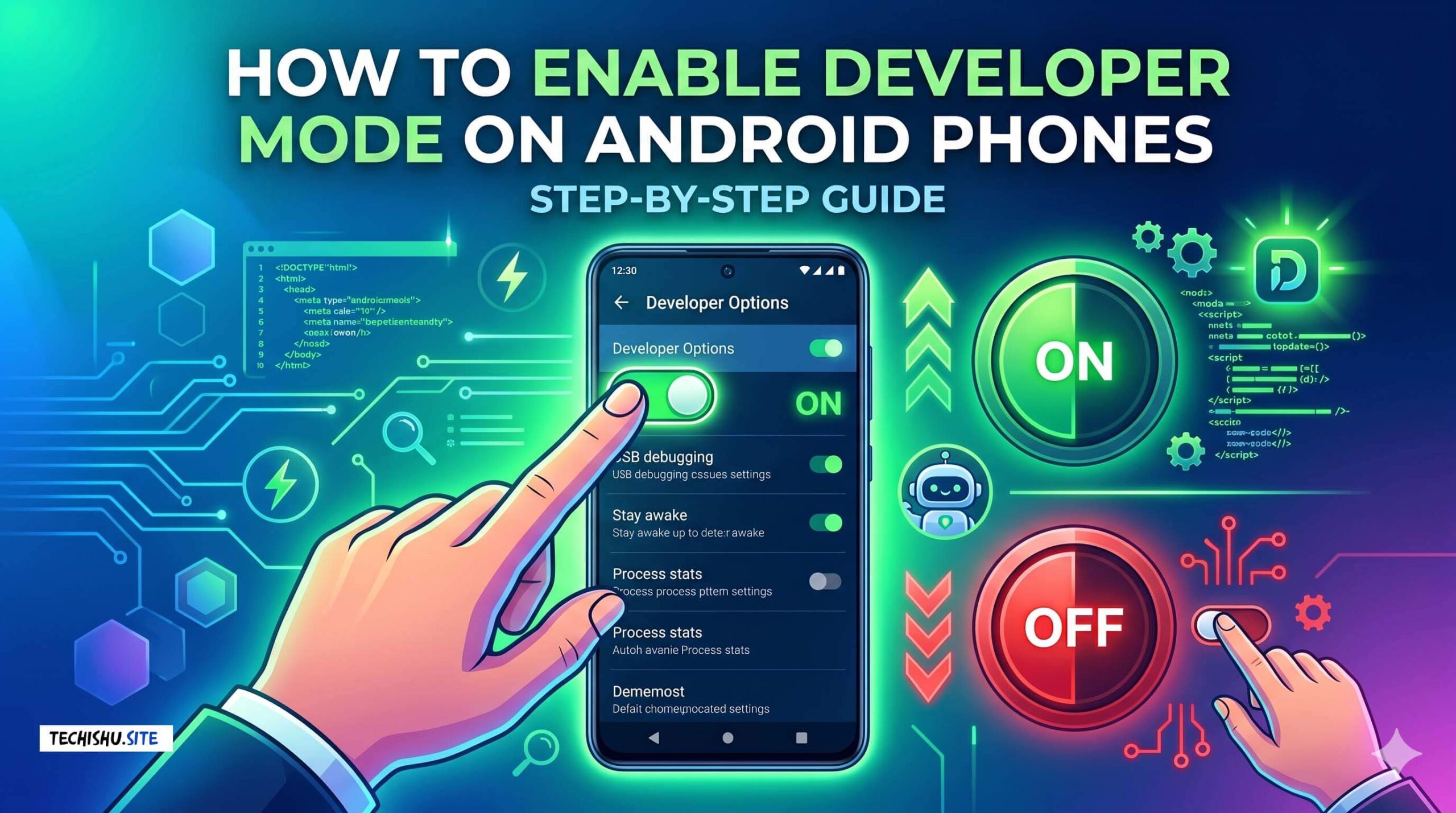
- Turn off the toggle switch at the very top of the screen.
- Go back, and the Developer options menu will be hidden and disabled.
Common Uses of Developer Mode
Even if you aren’t an app developer, there are several useful features you can access once Developer Mode is unlocked. Here are the main benefits:
USB Debugging : This allows your phone to communicate directly with a computer over a USB cable. You need this turned on if you want to use ADB (Android Debug Bridge) commands, recover data from a broken screen, install apps directly from your PC, or root your phone.
Speed Up Your Phone: You can change the “Window animation scale,” “Transition animation scale,” and “Animator duration scale.” By lowering these from 1x to 0.5x (or turning them off completely), your phone will feel noticeably faster and snappier when opening and switching apps.
Fake Your GPS Location (Mock Locations): Developer options allow you to select a “Mock location app.” This lets you spoof your phone’s GPS, tricking your phone and apps into thinking you are in a completely different city or country.
Force High Refresh Rate: Many modern phones (like your OnePlus 11R) dynamically drop the screen refresh rate to save battery. In Developer Options, you can force the screen to always stay at its maximum refresh rate (e.g., 120Hz) for the smoothest possible scrolling at all times.
OEM Unlocking: If you want to install a custom ROM (a modified version of Android) or root your device, you first need to check “OEM Unlocking” in this menu, which allows the phone’s bootloader to be unlocked.
Show Taps on Screen: If you record screen tutorials or want to test your touchscreen for dead zones, you can enable “Show taps.” It places a little white dot on the screen exactly where your finger touches.
Monitor Background Processes: You can view exactly which apps are running in the background and how much RAM they are consuming. You can also strictly limit how many apps are allowed to run in the background at once.
Note: While Developer Mode is safe to unlock, you shouldn’t change settings in that menu unless you know exactly what they do. If you accidentally change something and your phone starts acting strange, you can always just turn the toggle switch “Off” at the top of the menu to reset everything back to normal.